IRC with Emacs ERC and ZNC
IRC is an old protocol, even older than the Web, with a long history. While some still use it, most mainstream messaging app users aren’t thrilled about it. The protocol is open and free, which means there’s little commercial interest in building apps to attract “mainstream” users.
To use IRC properly, you need an IRC client and an IRC bouncer - a proxy between your client and the IRC server. The bouncer runs 24/7, monitoring activity in the IRC channels you’ve joined. While you’re away, it records all activity and sends it to your client when you reconnect. Although the client can connect directly to the server, you might miss messages sent while you’re gone.
This requirement makes it tough for most potential users to choose an IRC-based client for chatting. You need to know what you’re doing, and setting up a bouncer is a hurdle you must clear to fully participate in IRC communities.
My setup
There are many IRC clients and a number of bouncers that can be used. My preferred setup is based on IRC client build in Emacs called ERC and the ZNC bouncer.
How ERC, ZNC, and IRC Interact
Here’s a simple diagram of how the components work together.
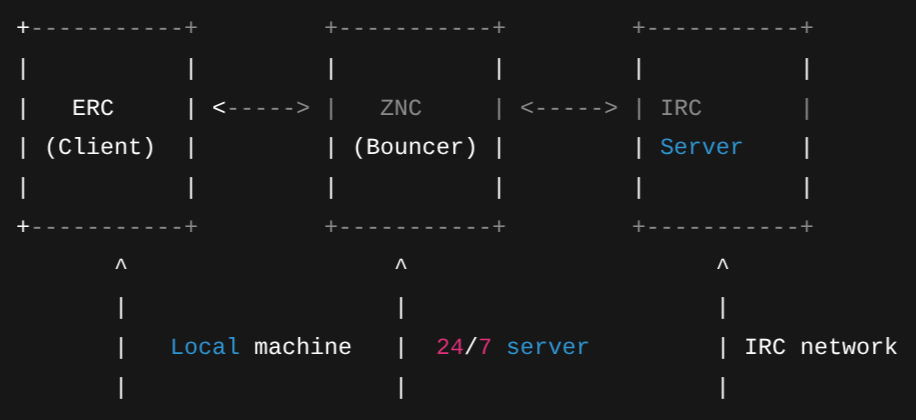
How it works:
- ERC client connects to ZNC bouncer running on a server.
- ZNC stays connected to the IRC server 24/7, recording messages while you are away.
- ERC fetches messages from ZNC, so you never miss conversations.
IRC nick name registration
The first thing that needs to be arranged in order to participate in the IRC network is the registration of your chosen IRC nickname.
Go to an IRC server that hosts the channels you want to subscribe to (for example, libera.chat) and register your nickname using the following command:
/msg NickServ REGISTER IRC_password your@email.address.com
- IRC_password = your chosen password
your@email.address.com= your email address
You can use a web client provided by the IRC server to register without an IRC client. If the nickname is available, it will be registered.
ZNC setup
Follow the installation instructions provided by the ZNC website but also keep in mind that the bouncer should run on a machine that is active 24 hours a day. Your laptop is not a good choice. You may consider Raspberry Pi or similar board to set it up as a server.
Once installed, use znc --makeconfig to generate an initial configuration. Follow prompts to set up your ZNC username, password, and server port.
Finally start the service and access the web administration interface.
- Open
https://localhost:ZNC_portin a browser. - Log in with your ZNC username and password.
- Use
Manage Usersto configure the IRC networks and channels.
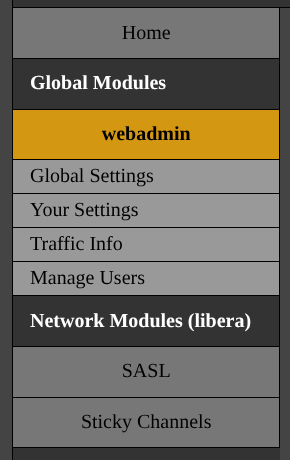
You can also set up a SASL authentication module to automatically authenticate with the IRC server using your registered IRC nick name and password.
ERC configuration
Once the ZNC setup is complete, it is time to configure your client. Below is the basic configuration for ERC, my IRC client of choice.
Uncomment irc in the :app section of in the ~/.config/doom/init.el configuration file to enable ERC .
(doom! :app
      irc
      )
Include the following configuration into the ~/.config/doom/config.el file.
(require 'erc)

(setq auth-sources '("~/Sync/shared/.authinfo.gpg" "~/.authinfo.gpg" "~/.authinfo" "~/.netrc"))

(defun my-erc ()
  "Connect to my ZNC bouncer."

  (interactive)
  (erc-tls
   :server "ZNC_server_address"
   :port ZNC_port
   :nick "IRC_nick_name"
   :password (auth-source-pick-first-password :host "ZNC_server_address")))
The configuration provides all the information needed for ERC to connect to the ZNC bouncer.
- ZNC_server_address: IP address or domain name of the ZNC server
- ZNC_port: The port you have chosen for ZNC access
- ZNC_password: The ZNC user password
- IRC_network: The name of the network set during ZNC configuration
- IRC_nick_name: The IRC nick name you have registered
It ensures that ERC can locate the server running ZNC and authenticate with it using the password you have set for your ZNC user.
The ZNC authentication parameters must be provided in the ~/.authinfo file located in your home directory. The file format is as follows.
machine ZNC_server_address login IRC_nick_name password ZNC_user_name/IRC_network:ZNC_password port ZNC_port
Ensure your password consists of these three parameters:
ZNC_user_name/IRC_network:ZNC_password
Once you have finished editing your configuration, execute the doom sync command in a terminal. This will apply your changes and update Doom Emacs. After the command completes, restart Emacs to ensure that the new configuration is loaded.
To start ERC, run the command M-x my_erc inside Emacs. ERC will then attempt to connect to your ZNC bouncer using the credentials and server information you set up.
Once connected, ERC will create a separate buffer for each IRC channel you subscribed to when configuring your IRC network. You can switch between these buffers using standard Emacs buffer commands, such as C-x b.
After everything is working, you can start chatting immediately and ERC will automatically keep track of messages on your subscribed channels even while you are away thanks to ZNC.
Troubleshooting
If the connection fails, check that:
- ZNC is running and accessible at the server address and port you specified.
- Your .authinfo file contains the correct ZNC username and password.